
- やさしい日本語
- ひらがなをつける
- Language
We provide multilingual content through machine translation. Translation accuracy is not 100%. About the multilingualization of the JAC website






- Home
-
Messages with overseas job seekers
JAC Members
Update date: 2026/09/28
Release date: 2023/09/29
Messages with overseas job seekers
Message procedure with overseas job seekers
Please follow the steps below to check and send messages to overseas job seekers.
(You can send messages and files only when you receive a message from an overseas job seeker.)
Step 1.
Displaying the message details screen
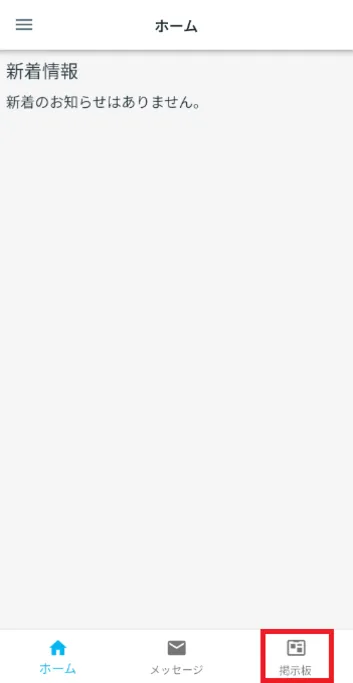
1-1. Display the "Overseas Job Seeker Information Board Menu" screen
On the home screen of the JAC Members app, tap "Message Board" on the bottom menu bar.
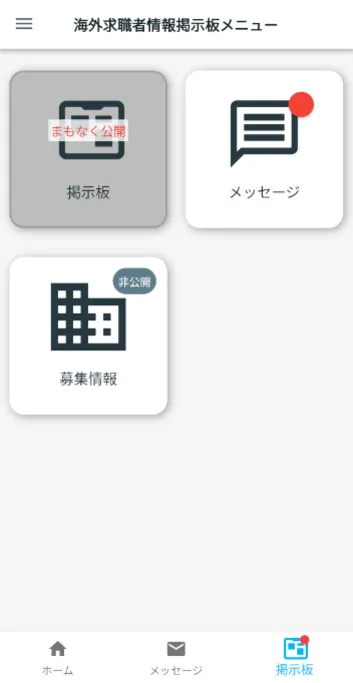
The overseas job seeker information bulletin board menu will be displayed.
When you receive a message from a job seeker, if there is an unread message, a red circle will appear in [Messages].
1-2. Display the message list
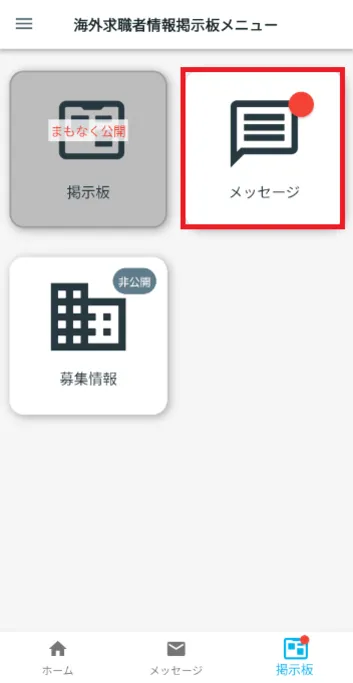
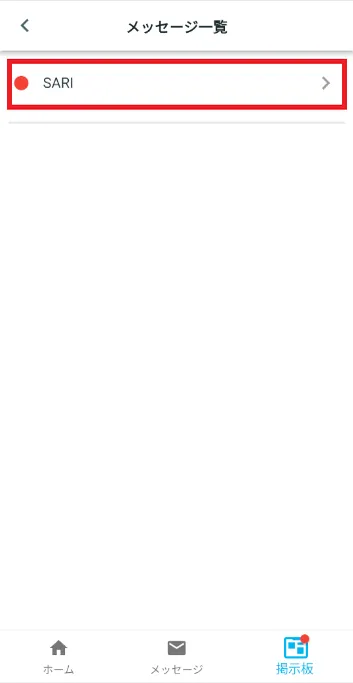
Tap [Message] on the overseas job seeker information bulletin board menu.
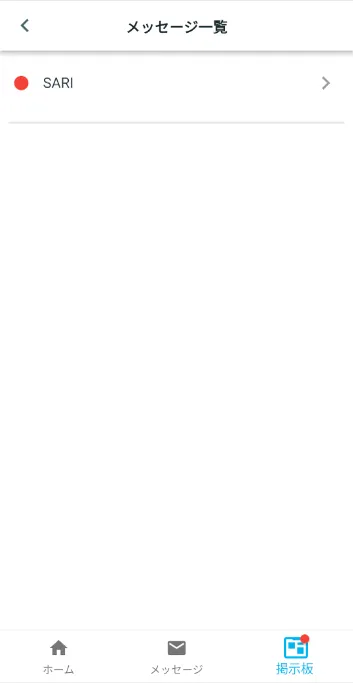
The "Message List" screen will be displayed.
Step 2.
Check and reply to messages
2-1. Check the message
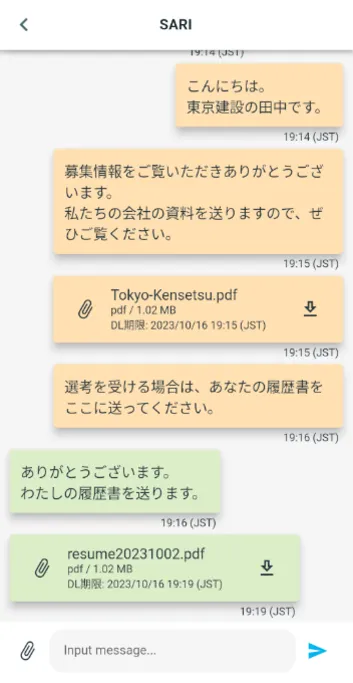
On the "Message List" screen, tap the job seeker with whom you want to exchange messages.
The message details screen will be displayed, allowing you to check the messages you have sent and received.
*Messages will be automatically deleted 180 days after they are sent or received.
2-2. Send a message
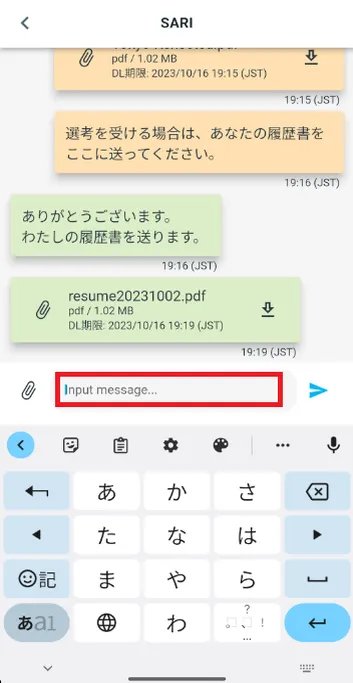
On the message details screen, tap "Input message...".
Enter your message and tap [>].
![Tap [>]](/news/files/recruit-message_2-2b.webp)
Step 3.
Sending and downloading files
3-1. Send files
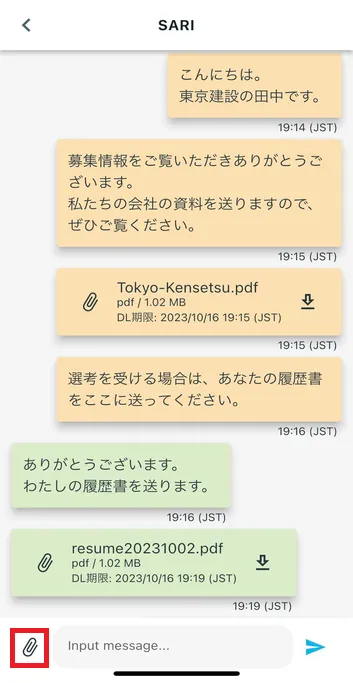
On the message details screen, tap the paperclip icon.
Select the file you want to send and tap [>].
* Please note that if the file size is too large, it may not be possible to send it.
![Tap [>] (currently available)](/news/files/recruit-message_3-1b.webp)
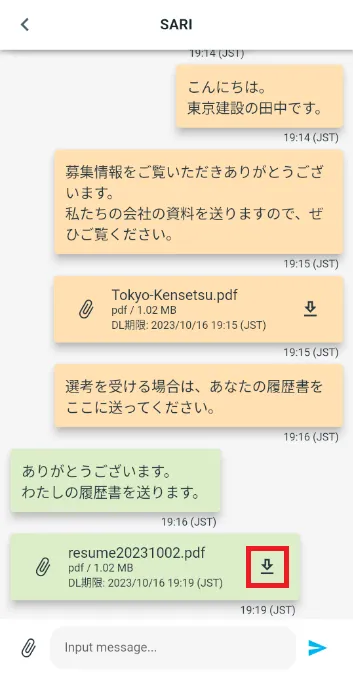
3-2. Download the file
On the message details screen, tap the "↓" icon of the sent file.
Please select a location to save the file.
* Attachments can be downloaded for 14 days after they are sent.
If the downloaded file doesn't open when you tap it, please check the link below.
Frequently Asked Questions (FAQ)
- Where can I install the "JAC Members" app?
- I forgot the password I registered for the "JAC Members" app.
- I have a new smartphone. Can I still use the "JAC Members" app?
- Is there a way to send a message to JAC using the "JAC Members" app?
- I would like to use my residence card to "apply for a change of device." What should I do?
- How do I delete my account?
- A "Supported Version Change Notification" dialog box appears on the app screen. What should I do?
- What should I do if I don't know where the files I downloaded using the "JAC Members" app are saved?
- What should I do if I don't know where the files I downloaded from "My Page" are saved?
- What should I do if I am unable to submit an application and a dialog box appears stating "You cannot submit a new application because you have already applied for the following."?
Index
- For Japanese construction companies
- For foreigners living in Japan
- For foreigners living abroad
For Japanese construction companies
Account registration and basic operations
Use of overseas recruitment information bulletin board
* Applications for issuance of pass certificate The Specified Skills Evaluation Exam or for events (seminars, Japanese courses, etc.) are only open to foreigners.
For foreigners living in Japan
Account registration and basic operations
For foreigners living abroad
Account registration and basic operations
Find Japanese companies (overseas recruitment information bulletin board)

- 0120-220353Weekdays: 9:00-17:30 Saturdays, Sundays, and holidays: Closed
- Q&A
- Contact Us